Compare homes side by side
Plot rent against the nestrrr score, compare every detail and share your shortlist.
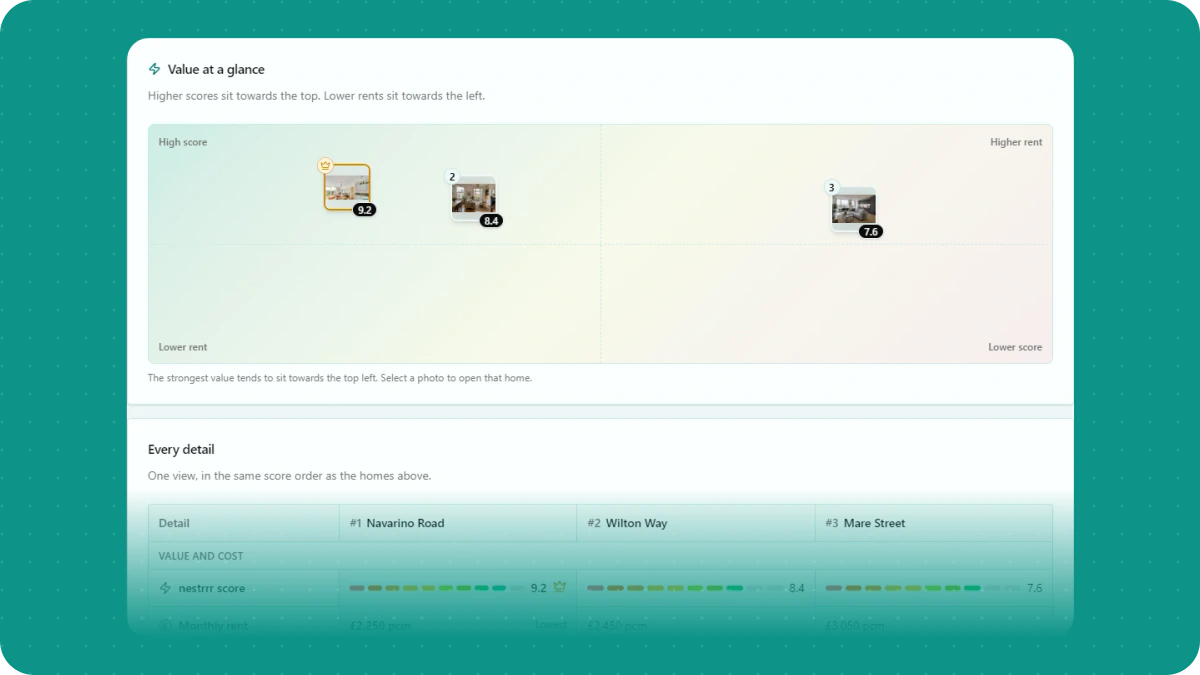
Two homes can look good for completely different reasons. nestrrr comparison puts the trade-offs in one view, so you can stop juggling tabs and screenshots.
How to compare homes
- Pick a home. Tap the compare button beside the heart on any property card.
- Build your list. Keep browsing and add between two and six homes. The comparison tray stays at the bottom of the screen, so you can see what you have picked.
- Open the comparison. Choose Compare homes when your shortlist is ready.
The homes are ranked by their nestrrr score, with a gold crown on the strongest option. You can remove a home or head back to the property list to add another at any time.
Spot the strongest value
The at-a-glance chart plots each home by its nestrrr score and monthly rent. Better scores move up. Lower rents move left. The strongest value usually lands near the top left.
Each point uses the property's photo, so it is easy to remember which home is which.
Compare every detail
The table lines up the score, rent, bills, bedrooms, bathrooms, floor space, furnishing and availability. The best value in each useful row is called out, and the homes stay in the same order all the way down.
If a listing does not say, neither do we. You will see Not stated instead of a guess.
Share the shortlist
Use Share to send the whole comparison to someone else. The public link works without an account and only includes the homes in the comparison, not your searches or account details.